ArchiToolIntroduction
Installation
step-by-step guide to install and start using the Architool plugin in Rhino.
Prerequisites
- Rhino 8 (PC only)
- Windows 10 or above
- An ArchiTool account — the same sign-in you use on architool.ai
In case you do not have a Rhino license, download a fully featured, free trial version.
Installation
Step 1: Launch Rhino 8 and Open the Package Manager
- Start Rhino 8:
Launch the Rhino 8 application on your computer. - Access the Package Manager:
Open the Package Manager via the menu or by typingPackageManagercommand into the Rhino command line.
Step 2: Search for and Install Architool
- Search for the Plugin:
In the Package Manager, enter01A_Architoolin the search bar. - Select the Latest Version:
From the search results, choose the most recent version of Architool. - Install the Plugin:
Click the install button to download and integrate Architool with Rhino.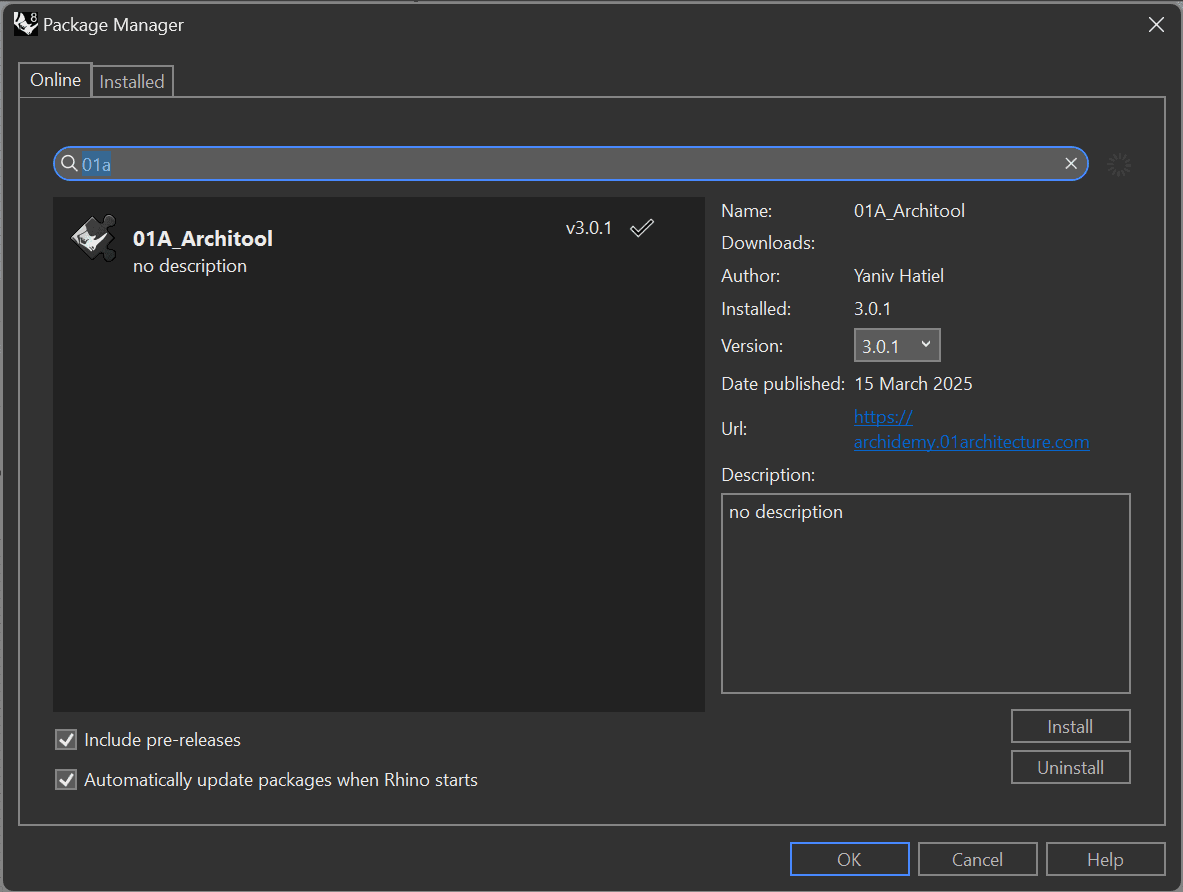
Step 3: Launch and Use Architool
- Open the panel:
TypeArchiToolin the Rhino command line. A dockable panel opens alongside your viewport; run it again to close the panel. - Sign in:
Use the same account as architool.ai. One sign-in covers Rhino, Revit and the website. - Run a tool:
Pick a tool in the panel. It reads the model you already have open — no export, no upload — and bakes its results back as native geometry on named layers.
Upgrading from version 3
The old 01A_* commands (01A_Architool, 01A_ShadowAnalysis, 01A_RadiationAnalysis,
01A_AnnualDaylight, 01A_WindRose, 01A_TerrainGenerator and the rest) were retired in
September 2026. Everything they did now lives in the panel behind the single ArchiTool
command. Package Manager upgrades your existing install in place — there is nothing to
uninstall first.
Was this lesson helpful?